> For the complete documentation index, see [llms.txt](https://kinochat.gitbook.io/help-center/llms.txt). Markdown versions of documentation pages are available by appending `.md` to page URLs; this page is available as [Markdown](https://kinochat.gitbook.io/help-center/quick-start/admin-guide-getting-started.md).
# Admin Guide: Getting Started
This manual applies to all administrators (Super Admin, Admin, and Supervisor). It is designed to help you quickly understand system features and perform operations correctly.
## **Agent Roles and Permissions**
KinoChat provides four agent roles, each with different permission levels.Roles are assigned per **workspace (business unit)**.
### **Role Definitions**
* **Super Admin**
* Each organization can have **up to 5** active Super Admins.
* All Super Admins have the same organization-level permissions and can manage all workspaces within the organization.
* Existing Super Admins can add or remove other Super Admins under Organization → Admins.
* **At least one** active Super Admin must always remain.
* When a Super Admin creates a new workspace, they are also automatically added to that workspace as an **Admin.**
* **Admin**
* Each workspace can have serval **Admins**, assigned by the Super Admin.
* Has broad management permissions within the workspace.
* **Supervisor**
* Each workspace can have **multiple supervisors**, assigned by the Super Admin or Admin.
* Focuses on team and chat supervision with limited administrative access.
* **Agent**
* Each workspace can have **multiple Agents**, assigned by the Super Admin or Admin.
* Primarily responsible for handling chats.
### **Roles & Permissions**
| **Feature / Permission** | **Super Admin** | **Admin** | **Supervisor** | **Agent** |
| -------------------------------------- | --------------- | --------- | -------------- | --------- |
| Home | ✓ | ✓ | ✓ | ✓ |
| Chats (All Chat Features) | ✓ | ✓ | ✓ | ✓ |
| Invite Agents | ✓ | ✓ | ✓ | ✓ |
| Edit Agent Roles | ✓ | ✓ | ✓ | ✕ |
| Remove Agents from Workspace | ✓ | ✓ | ✕ | ✕ |
| Delete Agents (Company Level) | ✓ | ✕ | ✕ | ✕ |
| Manage Groups (Create / Edit / Delete) | ✓ | ✓ | ✓ | ✕ |
| Dashboard | ✓ | ✓ | ✓ | ✓ |
| Workspace Management | ✓ | ✕ | ✕ | ✕ |
| Configure Contact Identification | ✓ | ✕ | ✕ | ✕ |
| Chat Widget Settings | ✓ | ✓ | ✓ | ✕ |
| Chat Settings | ✓ | ✓ | ✓ | ✕ |
| Forms Settings (Pre / Post Chat) | ✓ | ✓ | ✓ | ✕ |
| Security Settings | ✓ | ✓ | ✓ | ✕ |
| Help | ✓ | ✓ | ✓ | ✓ |
## **Account Setup**
{% stepper %}
{% step %}
### **Initial Your Account**
After you sign up for KinoChat, you need to provide the email address for the **Super Admin (highest permission)** to the **KinoChat Support Team().**The KinoChat Support Team will:
* Create a default business unit named **Default Workspace**
* Set up the initial Super Admin account
You can then log in to the system using the provided email address and password.
{% endstep %}
{% step %}
### **Change Password**
After logging in, go to the **Profile** page and click **Change Password** to update your password.
{% endstep %}
{% endstepper %}
## Manage Super Admins
Super Admins can manage other Super Admins under Organization → Admins.
### **Add a Super Admin**
1. Go to Organization → Admins.
2. Click Add Super Admin.
3. Search for an existing organization member by name or email.
4. Select the member and click Add Super Admin.
The new Super Admin will immediately have access to the organization and all its workspaces.
Note: The member must already belong to the organization. If they are not found, add them to a workspace first.
Each organization can have up to 5 active Super Admins.
### **Remove a Super Admin**
1. Go to Organization → Admins.
2. Find the Super Admin you want to remove.
3. Select Remove Super Admin from the Action menu.
4. Confirm the removal.
The member will immediately lose their organization-level Super Admin access. Any existing workspace roles they already have will remain unchanged.
You cannot remove yourself as a Super Admin, and at least one active Super Admin must always remain.
## 【NEW】Set Up Contact Identification
Contact identification determines how KinoChat recognizes returning customers and links new chats to contacts across your organization.
The default identification method is **Email**. Organizations with their own customer accounts can switch to **Customer user ID**.
### Who Can Manage
* Super Admin only.
### Enable Customer User ID
1. Go to **Organization → Contact identification**.
2. Click **Enable Customer user ID**.
3. Review the changes and confirm.
The setting applies to all workspaces in your organization. Each workspace must have **Automatic User Identification** enabled and receive a valid `user_id` through the integration to identify customers by Customer user ID.
{% hint style="info" %}
Enabling Customer user ID does not automatically enable Automatic User Identification in your workspaces.
{% endhint %}
### How Identification Works
* Customers with the same valid Customer user ID are linked to the same contact across workspaces within your organization. You can see the recent conversation related to this contact.
* Identification happens when a new chat is created. Updated identity information during a chat takes effect from the next new chat.
### Before You Switch
* **The switch is permanent. You cannot switch back to Email identification.**
* Only new chats are affected. Existing and ongoing chats keep their current contact associations.
* Existing contacts are not automatically migrated or merged. A customer may receive a new contact even if their email matches an existing contact.
**Learn More**
{% content-ref url="/pages/MeVohg1yNJnGJzQSTd4P" %}
[Auto User Identification Introduction](/help-center/quick-start/auto-user-identification-introduction.md)
{% endcontent-ref %}
## **Edit or Create a Workspace**
After logging in, you need switch to the default workspace before configuration.
{% tabs %}
{% tab title="Edit the Default Workspace" %}
If you have **only one business unit**, we recommend editing the default workspace only.
{% endtab %}
{% tab title="Create Additional Workspaces" %}
If you have multiple business units, you can create additional workspaces by clicking **Create Workspace**.
{% hint style="info" %}
If the **Create Workspace** option is not visible and you need to configure multiple business units, please contact
{% endhint %}
Team and chat settings are configured separately for each workspace. Contact identification is configured at the organization level and applies to all workspaces.
If an agent belongs to multiple workspaces, they will receive chat requests from **all associated workspaces simultaneously**.It is super helpful when you need an agent to handle the requests from different business units.
{% endtab %}
{% endtabs %}
## **Cross-workspace Messaging(optional)**
Cross-workspace Messaging allows agents to receive and manage messages from multiple workspaces in a unified experience.
#### Who Can Manage
* Super Admin only
#### Enable or Disable
Access: Account Settings → Cross-workspace Messaging
#### Enable
* Agents receive messages from all accessible workspaces
* Workspace-specific chat limits and inactivity settings are overridden
#### Disable
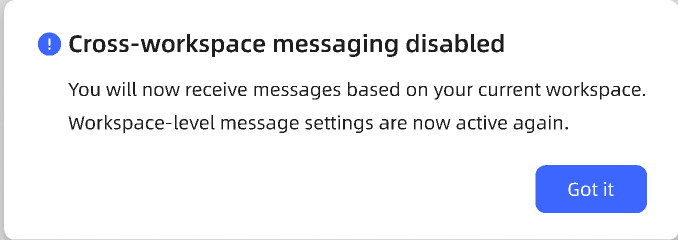
* Restores workspace-level chat limits and inactivity settings
* Agents will only receive messages from the active workspace
Global confirmation is required when enabling or disabling this feature.
{% hint style="danger" %}
**Important Notes**
* When enabled, chat limits and inactivity rules apply globally
* Agents receive a global notification when the status changes
* Disabling may require agents to manually switch workspaces to continue chats
{% endhint %}
## **Build Your Team**
Once a workspace is created and enabled, you can manage agents and groups within that workspace.
Team management is located under **Settings → Team**. The Team page contains three tabs:
* **Agents** — Manage workspace members, roles, license status, VIP Agent status, and member actions.
* **Groups** — Manage groups and group membership.
* **Invitations** — Track invitations from submission until the invitee becomes an active workspace member.
{% stepper %}
{% step %}
### **Invite Agents**
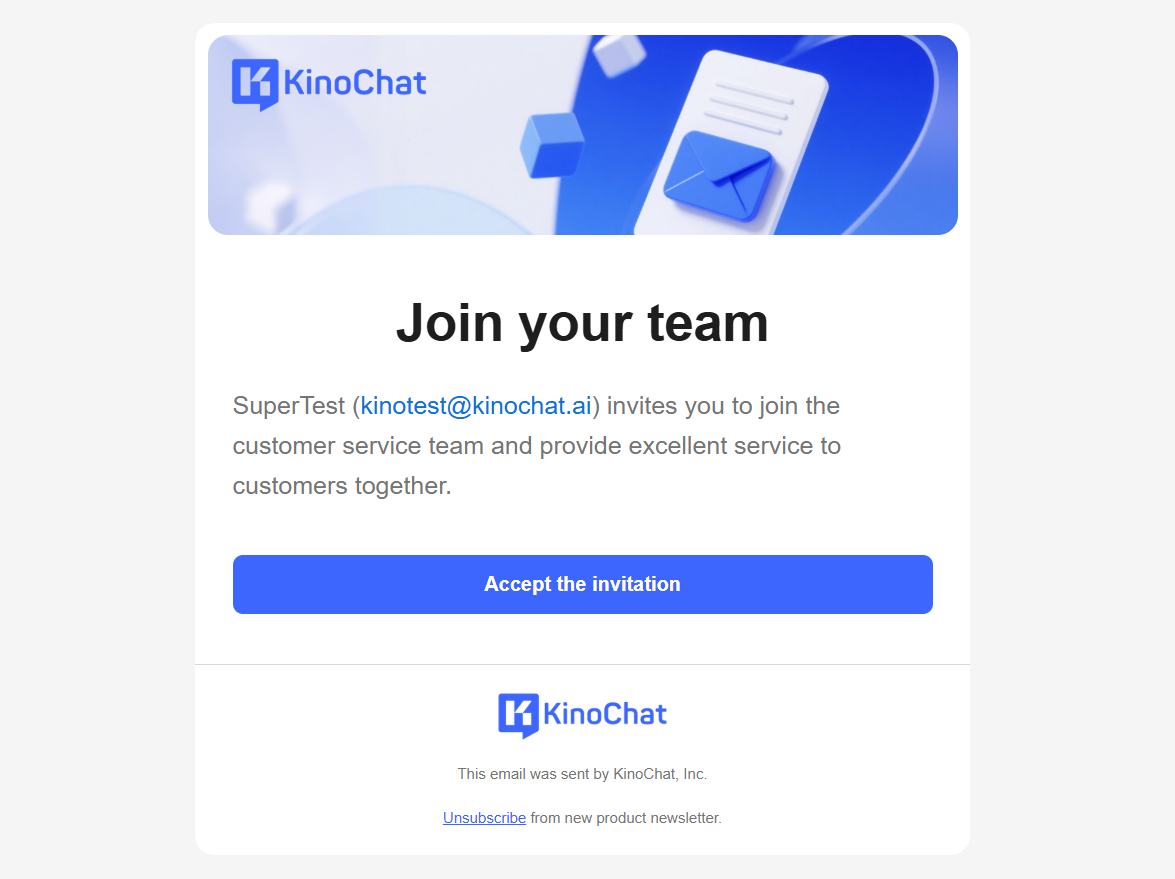
All roles, including Agents, can send invitations from **Settings → Team → Invite agents**.
Invitation options depend on the sender's role:
* **Super Admin** can invite Admins, Supervisors, and Agents.
* **Admin** can invite Supervisors and Agents.
* **Supervisor** can invite Agents.
* **Agent** can invite Agents only. For invitations sent by an Agent, the role is fixed to Agent, the group is fixed to General, and VIP Agent is turned off.
{% tabs %}
{% tab title="Single Invite" %}
{% endtab %}
{% tab title="Bulk invite" %}
{% endtab %}
{% endtabs %}
{% hint style="info" %}
**Inviting additional agents may incur extra charges. Please proceed with caution.**
{% endhint %}
Both Single invite and Bulk invite are supported. Invalid email addresses are highlighted before submission and must be corrected before the invitation can be sent.
When invitations are submitted:
* An existing member of the same organization who is not in the current workspace can be added directly after confirmation.
* An external email receives an invitation and enters **Pending Accept**.
*
* An email that already belongs to the current workspace is skipped.
* Duplicate emails in the same submission are not sent twice.
* Delivery or permission errors enter **Failed**.
After submission, open **Settings → Team → Invitations** to review the results.
{% endstep %}
{% step %}
### **Manage Invitations**
The Invitations list tracks each invitation for the current workspace.
**Pending Accept**
The invitation has been sent and is waiting to be accepted.
Available actions:
* **Resend** — Sends a new invitation and invalidates the previous link.
* **Cancel** — Cancels the invitation and invalidates its link.
* **Copy invitation link** — Copies the latest valid link without generating a new link or extending its validity.
Invitation links are valid for seven days. When a link expires, the record remains Pending Accept and Resend becomes the primary action.
{% endstep %}
{% step %}
### **Manage Your Groups**
**General** is the default group and contains all workspace agents. The default group is always listed first and cannot be archived.
Select a group to open its details. Depending on your permissions, you can:
* Edit the group name.
* Search workspace members by name or email and add them to the group.
* Remove a member from an active, non-default group. This does not remove the member from the workspace or other groups.
* Archive a non-default group.
* Restore an archived group.
Archived groups cannot be selected when adding members or sending new invitations
{% endstep %}
{% endstepper %}
## **Set Up Chat Settings**
If you manage multiple workspaces, switch the **global workspace** to configure chat settings separately for each one.
{% stepper %}
{% step %}
### **Set Up Chat Assignment**
Administrators (Super Admin, Admin, Supervisor) can set the chat assignment mode to:
* **Automatic Assignment(Recommended):** Chats are evenly distributed to agents with online status. If all agents reach capacity, new chats go to the Unassigned Chats list for manual claim.
* **Manual Selection:** New chats enter the Unassigned Chats list. Agents receive notifications and can claim a chat to respond.
{% endstep %}
{% step %}
### **Change Default Customer Name**
You can customize the default customer name (e.g., *Customer*) for your workspace.
{% endstep %}
{% step %}
### **Change Auto Welcome Message**
You can configure automated welcome messages sent to customers when a chat starts.
{% endstep %}
{% step %}
### Enable **Pre-chat Form**
You can enable the pre-chat form to collect information before a customer starts a chat.
* **Information**: Customize the welcome message
* **Name**: Customize the label to collect customer names
* **Email**: Customize the label to collect email addresses
* **Group Selection**: Customize chat routing options based on the customer’s selection. You can route chats to different groups according to the options chosen by the customer. Click **Add Answer** to add multiple groups.
{% hint style="info" %}
It is super helpful if you have different skill group handling different customer requests.
{% endhint %}
* **Button**: Customize the button label (default: *Chat Now*)
* **Add Element**: Add additional form components
When disabled, the pre-chat form is hidden.
{% endstep %}
{% step %}
### **C**ustomize **Rating Form**
Enabled by default. When enabled, the rating button appears in both interfaces, and customers are prompted with a rating form after the chat ends.
* **Chat Rating**: Customize the rating prompt text
* **Rating Setting**: customize the rating system
1-5 point rating system: classify into five levels: Poor、Fair、Neutral、Good、Excellent.
1-3 point rating system: classify into three levels: Poor、Neutral、Excellent.
When disabled, the rating button is hidden across both interfaces and the form submission is blocked.
{% endstep %}
{% step %}
### **Security**
You can choose how credit card numbers are displayed in chats.**Credit Card Masking Options**
* **Show credit card numbers in chats**: Displays full card numbers
* **Mask customer credit card numbers**: Masks all digits except the last four with “X”
{% endstep %}
{% endstepper %}
## **Customize Your Chat Widget Appearance**
**Access: Settings → Chat Widget → Appearance**
### Chat Bubble
You can customize the chat entry icon displayed on your website in every workspace
**Options**
* Upload an image (JPG / JPEG / PNG, max 2MB)
* Choose from the built-in gallery
Uploaded images are automatically resized for display and applied to the preview.
### Theme Color
Set the primary color for the chat widget.
* Affects buttons and highlighted elements
* Supports preset colors and manual color input
* Invalid color input will not override the current color
### Brand Icon
Upload a brand icon used in the chat header and messages.
* Supported formats: JPG / JPEG / PNG
* Max size: 2MB
* Image is cropped into a circular shape
## **Deploy Your Chat Widget**
After completing all configurations, you can add the chat widget to your website.The widget supports:
* Popup chat window
* Full-screen chat window:
Copy your code to your developer team and embed the chat widget to your website.
Your developer team can follow [this article](/help-center/quick-start/install-chat-widget-on-your-website.md) to install the chat widget.
If you prefer not to embed the chat widget on your website, you can contact us() to obtain an external chat link instead.
## Speed Up Chatting
### Set Up Public Quick Reply
Public Quick Replies allow admins to define standardized response templates shared across the workspace.
#### Access
Settings → Public Quick Reply
#### Create a Public Quick Reply
* Shortcut: required, single shortcut, max 20 characters
* Reply Content: required, text only, max 500 characters
#### Best Practices
* Use clear, descriptive shortcuts
* Keep replies policy-aligned and professional
* Avoid temporary or sensitive information
After you finish setting up, the agents can search/insert quick reply as chatting.
## Prioritize VIP Customers
### Set Up VIP Customer Routing
VIP Customer Routing allows admins to prioritize high-value customers by assigning them to VIP Agents first when available.
#### Configure VIP Customer Tiers
**Access**
Settings → User Identity → User Segments
For each User Tier:
* Set a Priority Level (1–20)
* Enable the VIP toggle if the tier should be treated as VIP
#### Configure VIP Agents
**Access:**
Team → Agents
Admins can enable the VIP Agent switch for selected agents within the current workspace.
#### How VIP Routing Works
* Conversations are still routed based on the pre-chat form configuration
* VIP customers will first attempt to be assigned to available VIP Agents within the matched group
* If no VIP Agent is available, the system automatically falls back to normal assignment logic
#### Best Practices
* Reserve VIP status for high-value customer tiers
* Ensure enough VIP Agents are available during peak hours
* Use consistent priority rules across user segments
* Regularly review VIP Agent workload and capacity
#### After Setup
VIP customers will automatically receive prioritized assignment during the conversation routing process.
## Set Up Automatic Away Mode
Automatic Away Mode helps prevent inactive agents from staying online for too long by automatically switching them to Away status after a period of inactivity.
This helps:
* Reduce ghost online agents
* Prevent incorrect chat assignments
* Keep queues moving smoothly
* Improve SLA accuracy
***
### Configure Automatic Away Mode
**Access**
Settings → Chat Settings → Agent Inactivity
**Configuration**
Enable Automatic Away Mode to allow KinoChat to automatically switch inactive agents to Away.
Admins can configure:
**Inactivity Timeout**
The amount of inactive time before the warning popup appears.
Limits:
* Min: 1 minute
* Max: 60 minutes
* Default: 5 minutes
**Warning Countdown**
The countdown duration shown before the agent is automatically switched to Away.
Limits:
* Min: 10 seconds
* Max: 300 seconds
* Default: 60 seconds
***
### How Automatic Away Works
When an agent stays inactive for the configured period:
1. KinoChat displays a warning popup
1. The countdown begins
2. If there is still no activity after the countdown
3. The agent is automatically switched to Away
Once switched to Away:
* The agent stops receiving new chats
* **Existing conversations remain active**
* The agent stays logged in
Agents can switch back to Active at any time using the status bar action.
***
### What Counts as Activity
The inactivity timer resets when the agent performs actions such as:
* Sending messages
* Typing in the input box
* Clicking within the page
* Switching conversations
* Editing the message input
* Returning focus to the page
* Keyboard input
### (Not Required) Set Up Away Reasons
Away Reasons help your team understand why an agent is currently away.
When Away Reasons are enabled, agents must select a reason when switching their status to Away. This gives supervisors better visibility into team availability without changing how chat assignment works.
Away Reasons do not affect routing or assignment. Agents in Away status will not receive new chat assignments, regardless of the selected reason.
#### Access
Settings → Agent Settings → Presence → Away Reasons
#### Configure Away Reasons
Admins can manage Away Reasons at the workspace level.
You can:
* Enable or disable Away Reasons
* Add custom Away Reasons
* Edit reason names and emojis
* Archive reasons that are no longer used
* Restore archived reasons
* Reorder reasons shown to agents
Archived reasons are removed from the agent selection list, but historical records will keep the original reason for future reference.
#### How Away Reasons Work
When Away Reasons are enabled:
1. An agent switches their status from Online to Away.
2. KinoChat asks the agent to choose an Away Reason.
3. The selected reason is shown in the agent status area and Team page.
4. The agent stops receiving new chat assignments while remaining logged in.
System-triggered Away status, such as Automatic Away Mode, may use a system-generated reason such as Inactive.
Agents can switch back to Online at any time when they are ready to receive new chats again.
## Announcement
You can use the announcement feature to send notifications, quickly reaching all agents or customers.
* At the workspace management view, you can send notifications across all workspaces
* At the workspace view, you can only send notifications within the current workspace
#### Create an announcement
Click “Create announcement” in the top right corner and complete the following fields:
* **Audience**
* The target audience of the announcement (internal agents or customers)
* **Title & Description**
* The main message you want to communicate to the selected audience
* **Notification type**
* Silent Notification: Displayed only in the announcement panel on the agent side or in the widget feed
* Urgent Alert: Shown as a centered pop-up on the agent or widget side. Agents must click “Confirm” to continue
* **Target workspace(only at workspace management view)**
* The workspace you want to send
* **Send date**
* Send immediately
* Schedule for later: select a time to send the announcement
You can save as a draft that can be edited again or publish.
Then you can see the announcement you created in the table.
You can edit or delete announcements in draft status, and also archive published announcements.
#### View an announcement
Agents in the target workspace will receive the announcement when they log in to KinoChat.
* **Silent Notification**
* Displayed only in the announcement panel on the agent side or in the widget side
* **Only the latest three announcement will be displayed in the widget**
* **Urgent Alert**
* Shown as a centered pop-up on the agent or widget side. Users must click Confirm or Got it to continue
* In the widget side, all urgent Alerts are displayed as pop-ups in reverse chronological order. To ensure a good user experience, **limit the number of active announcements and archive outdated ones promptly.**
Also, agents can view published announcements in the Content section of the left-hand menu.
**If an announcement is archived, agents will no longer be able to view it in the list.**
## Review Closed Conversations
The Conversation workspace gives supervisors a dedicated place to search and review closed conversations.
It is separate from Agent Inbox. Agent Inbox is mainly used by agents for daily chat handling and short-term follow-up, while Conversation is used by supervisors for broader closed conversation review.
#### Access
Conversation
Only Supervisors and above can access the Conversation workspace.
#### What You Can Do
In Conversation, you can:
* Search closed conversations in the current workspace
* Filter conversations by date, group, agent, rating, and close reason
* Open a conversation to review full chat details
* Save frequently used filter combinations as My Views
#### Views
Views help you reuse common search conditions.
A View saves the filter conditions, not fixed results. Each time you open a View, KinoChat searches the latest conversations that match the saved filters.
Default views are created by the system and cannot be renamed or deleted.
My Views are created by you. You can rename, update, duplicate, or delete them.
## **Monitor Operations**
Operations is a top-level workspace for Supervisors, Admins, and Super Admins. It separates real-time operational monitoring from member configuration.
**Agent Status**
Go to **Operations → Agent Status** to see whether agents can receive new chats.
| Status | Meaning | Can receive new chats |
| --------- | ----------------------------------------------------------------------------- | --------------------- |
| Available | The agent is online and below their active chat capacity. | Yes |
| Away | The agent is not accepting new chats. An Away reason is shown when available. | No |
| Busy | The agent is online and has reached or exceeded their active chat capacity. | No |
**Online** describes login or connection status only. It does not mean that an agent can receive a new chat.
The page includes:
* Summary counts for Available, Away, and Busy.
* Filters for Group and Status.
* Agent, Status, Active chats, Last status change, and Action columns.
* Active chats displayed as current conversations against capacity, for example, **3 / 5**.
* Automatic updates, a Last updated timestamp, and a manual Refresh action.
Away reasons appear inside the Status field only when the agent is Away.
**Force logout**
Supervisors, Admins, and Super Admins can use **Force logout** from the Agent Status page. The action signs the agent out of active sessions across devices, browser tabs, and workspaces. The agent must sign in again to continue working.
Force logout is different from switching an agent to Away. Existing conversations continue to follow the workspace's current offline handling rules.
**Queue**
Go to **Operations → Queue** to monitor conversations waiting to be assigned.
The summary displays:
* **Waiting** — Total conversations currently waiting. VIP conversations are included in this number.
* **Oldest wait** — The longest current waiting time. When there are no waiting conversations, this displays **-**.
* **Available agents** — Online agents below their active chat capacity.
* **Busy agents** — Online agents who have reached or exceeded their active chat capacity.
The Queue by group list displays **Group, Waiting, Oldest wait, Available, Away, and Busy**.
Select a group to expand its waiting conversations. The expanded list shows the Conversation, Customer, and Waiting time. VIP customers are identified with a VIP label; they do not use a separate queue and are not counted in addition to the Waiting total.
Queue data updates automatically. Waiting time increases while a conversation remains in the queue, and assigned or closed conversations are removed. A manual Refresh action and Last updated timestamp are also available.
## Contact Us
{% columns %}
{% column %}
### Chat With Us
Chat Now
{% endcolumn %}
{% column %}
### Email Us
We’ll be back in touch with you soon
{% endcolumn %}
{% endcolumns %}
Enjoy your chat journey with **KinoChat!** We are glad to hear your feedback!